
Introducing ROCprofiler Compute: AMD GPU Profiling in Your IDE
Profile AMD GPUs directly in VS Code and Cursor. View hardware metrics, roofline analysis, and kernel stats — all without leaving your editor.

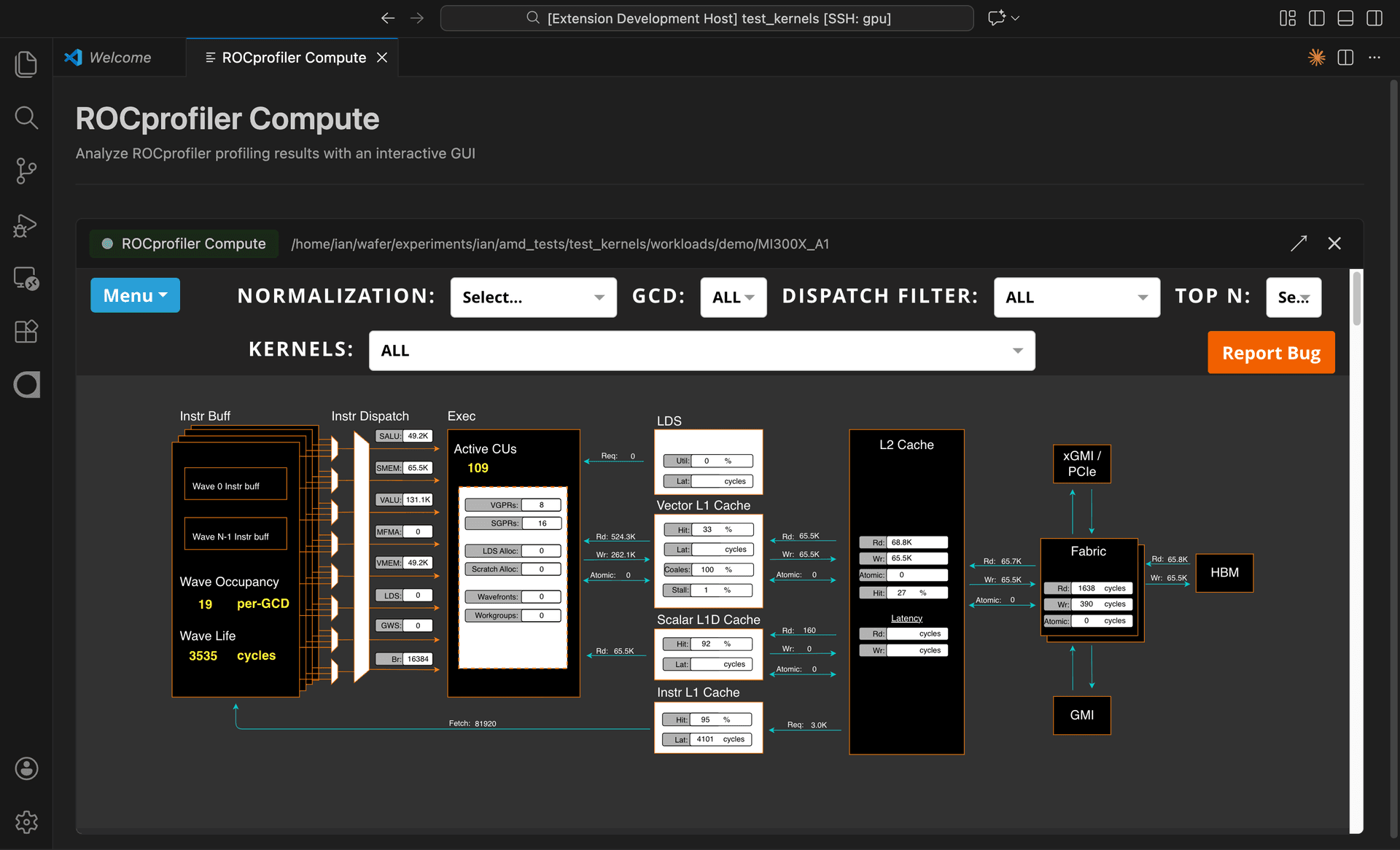
TLDR: ROCprofiler Compute brings AMD GPU profiling into your IDE. View hardware metrics, roofline analysis, and kernel performance data directly in VS Code or Cursor.
Today we're launching ROCprofiler Compute support in Wafer.
If you're profiling AMD GPUs (MI300X, MI250, etc.), you can now view your rocprof-compute results directly in your editor with an interactive GUI.
What's included
1. GPU Architecture Overview
See your kernel's performance at a glance. The architecture diagram shows every hardware block — instruction dispatch, compute units, caches, memory bandwidth — with real metrics from your profiling run.
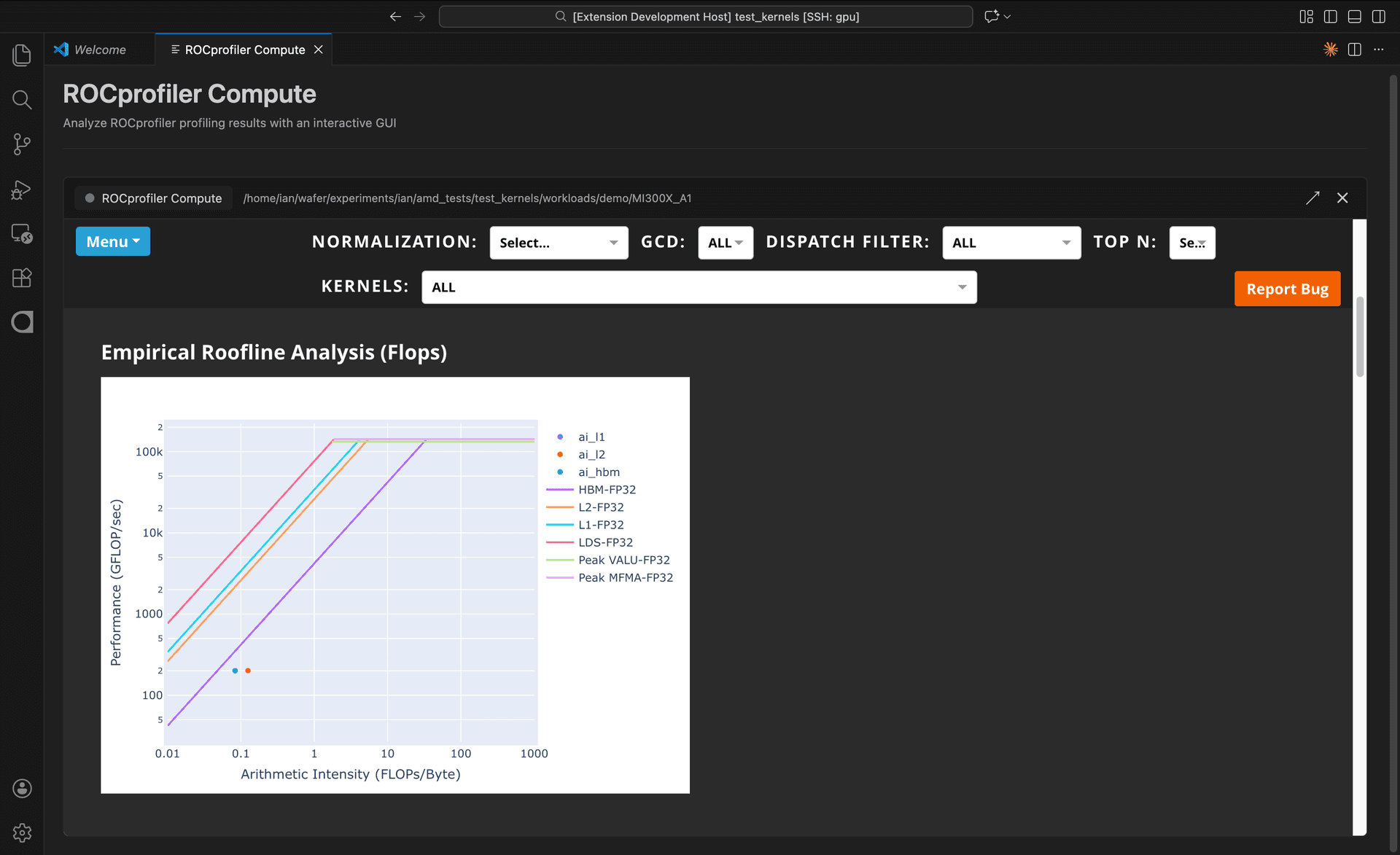
2. Roofline Analysis
Understand where your kernel sits relative to hardware limits. The roofline plot shows arithmetic intensity vs. performance for L1, L2, HBM, and peak compute.
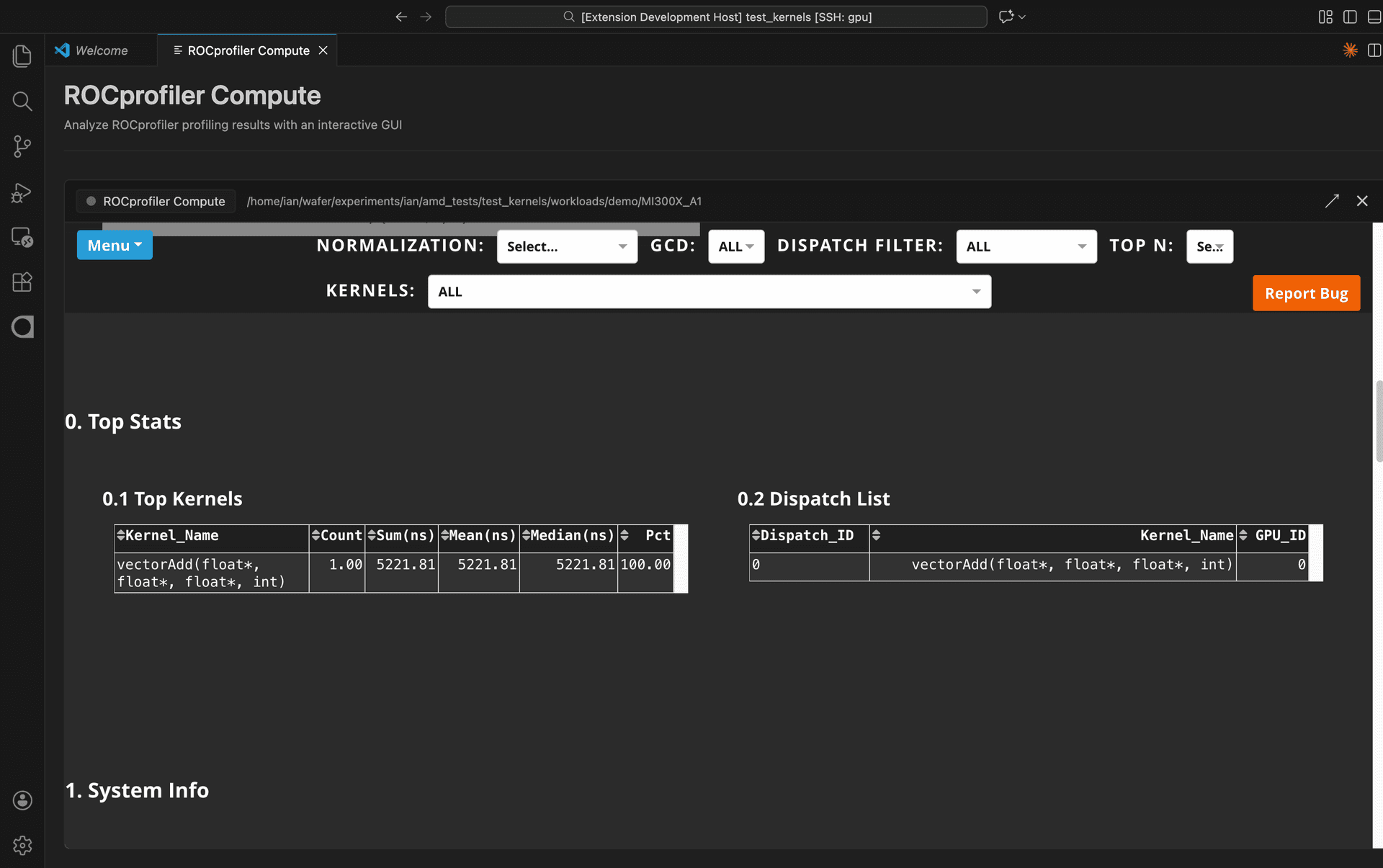
3. Kernel Statistics
View top kernels by execution time, dispatch lists, and per-kernel breakdowns. Sort and filter to find the hotspots.
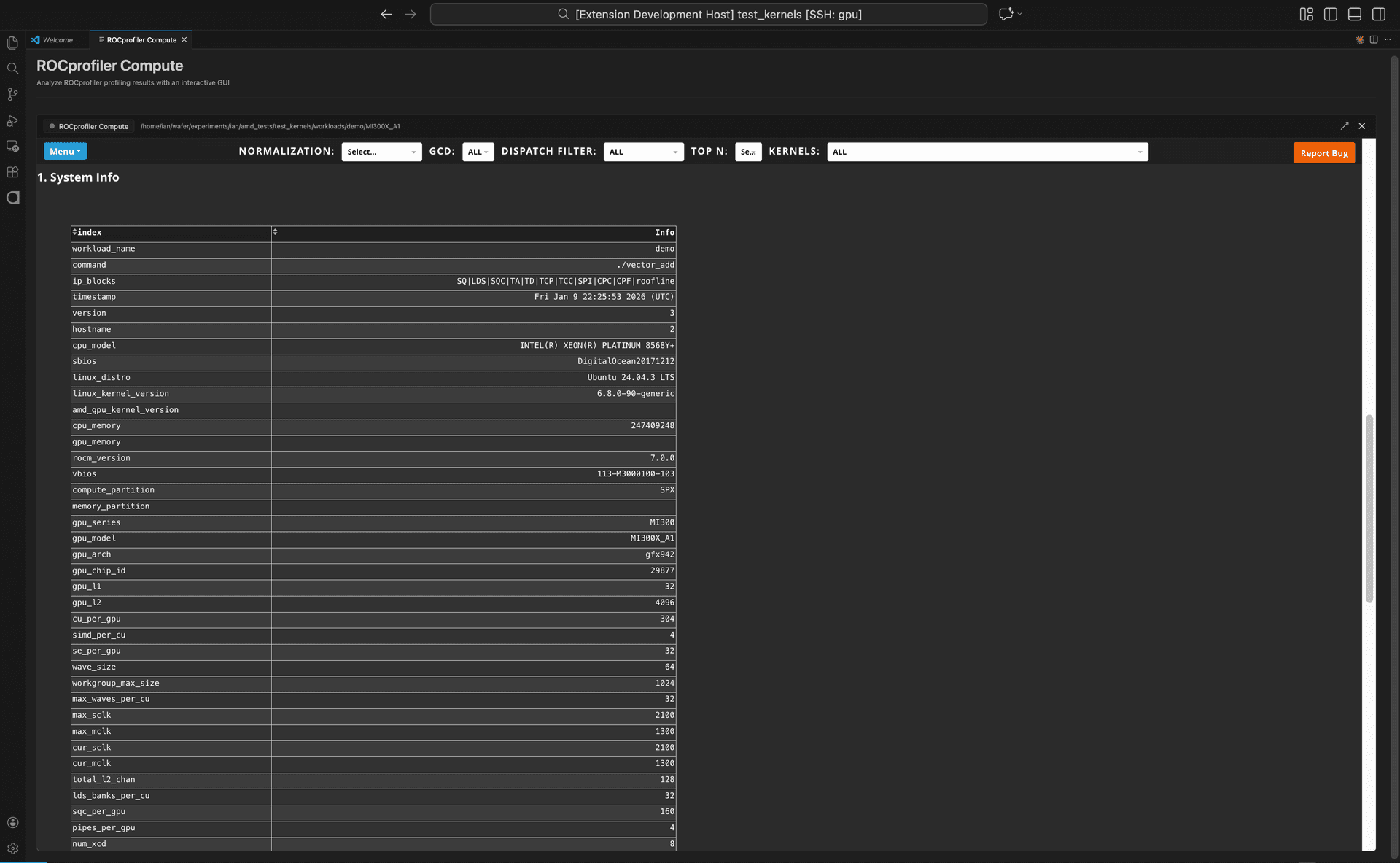
4. System Info
Full hardware details: GPU model, compute units, cache sizes, clock speeds, ROCm version — everything you need to understand your target hardware.
How to use it
Option 1: View existing profiling results
If you already have rocprof-compute results:
1. Open Wafer in VS Code/Cursor
2. Select "ROCprofiler Compute" from the tools menu
3. Browse to your workload folder (must contain sysinfo.csv)
4. Click "Launch GUI"
Option 2: Profile and analyze with Wafer CLI
Profile your application:
wafer rocprof-compute profile --name my_kernel -- './my_hip_app'Analyze results:
wafer rocprof-compute analyze workloads/my_kernelLaunch GUI:
wafer rocprof-compute analyze workloads/my_kernel --guiRequirements
- ROCm 7.0+ with
rocprof-compute3.2+ - AMD GPU with ROCm support (gfx908, gfx90a, gfx940, gfx941, gfx942, gfx950)
The GUI viewer works on any platform — it only reads CSV files from your profiling run. You can profile on a remote AMD machine and view results locally.
Try it out
If you'd like access for your team, talk to us.